Background Removal for 3D Printing: Isolate Any Subject Instantly
ColorLayer's built-in AI background removal uses the ISNet model to isolate subjects from photos. Remove backgrounds in your browser before converting to 3D.
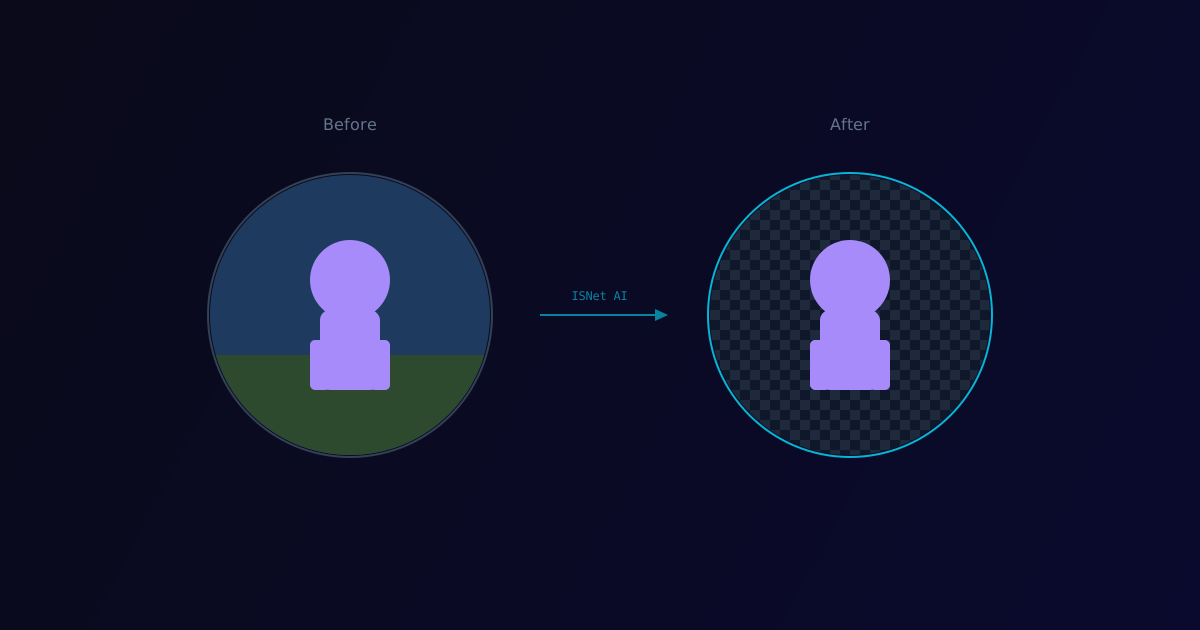
When you upload a photo to create a multi-color 3D print, the background usually gets in the way. A photo of your pet includes the sofa, the floor, the wall behind it — none of which you want in your final print. Until now, you had to remove the background manually in Photoshop or another tool before uploading.
Today we are adding AI-powered background removal directly into ColorLayer. One click, and the subject is cleanly isolated.
How It Works
ColorLayer uses ISNet (Information Segmentation Network), a deep learning model specifically designed for salient object detection. ISNet analyzes the image to identify the primary subject and generates a precise alpha mask that separates it from the background.
The entire process runs locally in your browser using a Web Worker. Your images are never uploaded to a server for processing.
Technical Details
The pipeline works as follows:
- Preprocessing — The image is resized to the model's expected input dimensions
- Inference — The ISNet model runs via ONNX Runtime in a Web Worker thread
- Mask Generation — The model outputs a probability mask for each pixel
- Alpha Application — The mask is applied to the original full-resolution image
- Result — A clean PNG with transparent background
Running inference in a Web Worker means the UI stays responsive during processing. You can continue adjusting settings while the background removal runs.
Why Browser-Side?
We chose to run background removal entirely in the browser for several reasons:
- Privacy — Your images never leave your device
- Speed — No network round-trip latency
- Availability — Works offline once the model is cached
- Cost — No server-side GPU costs to pass on to users
The ONNX model is about 45MB and is cached after the first load. Subsequent uses start almost instantly.
Pairing with Contour Base
Background removal works especially well with the contour base shape. After removing the background:
- The image has a transparent background
- Select "Contour" as the base shape
- The base automatically follows the outline of your subject
This gives you a perfectly shaped print — for example, a cat-shaped coaster or a logo-shaped magnet.
Tips for Best Results
- High contrast between subject and background produces the cleanest masks
- Single subjects work better than crowded scenes
- Well-lit photos with clear edges give the model more to work with
- If the mask is not perfect, you can touch up the result in any image editor before proceeding
Also Available as a Standalone Tool
We found background removal so useful that we built it into a separate Background Removal Tool. If you just need to remove a background without the 3D printing workflow, try it out — it supports PNG, JPG, WebP, and even HEIC files.
Try It
Open the ColorLayer editor, upload a photo, and click the background removal button. Watch the subject get cleanly isolated in seconds.
Background removal + contour base + calibrated colors = the best possible print from a photograph. Try all three together for impressive results.
ColorLayer Team
Author