Print Orientation Guide: Color-Up vs Color-Down for Best Results
Should you print multi-color models color-up or color-down? This guide explains the tradeoffs and helps you choose the right orientation for each project.
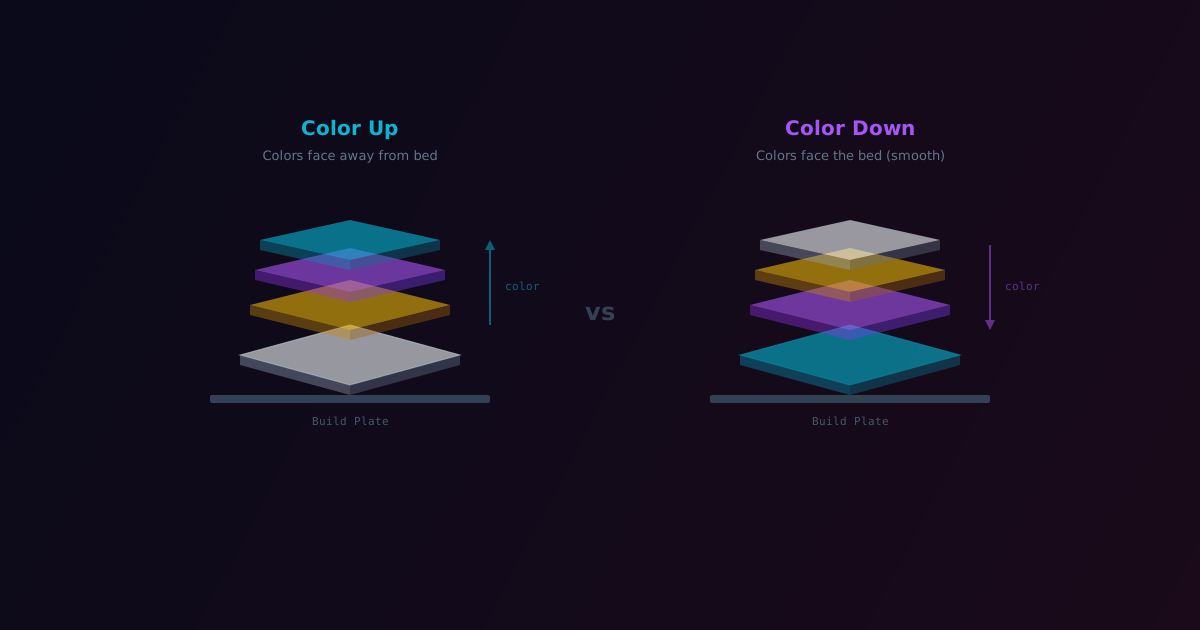
When you export a multi-color model from ColorLayer, you choose between two orientations: Color-Up and Color-Down. This choice affects surface finish, color vibrancy, adhesion, and the overall look of your print. Here is how to decide.
Color-Up Orientation
In color-up mode, the base layer prints first (on the build plate), and the color layers stack on top. The colored surface faces away from the bed.
Advantages
- Better bed adhesion — the full base layer contacts the build plate
- Structural stability — the solid base provides a foundation for the thinner color layers
- Easier printing — fewer first-layer adhesion issues
Disadvantages
- Textured top surface — the top color layer shows layer lines from the FDM process
- Slightly lower detail — fine color details may be less sharp due to surface texture
Best For
- Wall art and decorative pieces (viewed from a distance)
- Functional prints where adhesion matters
- First-time users (more forgiving printing)
- Large prints where warping could be an issue
Color-Down Orientation
In color-down mode, the color layers print first (directly on the build plate), and the base layer is on top. The colored surface faces the bed.
Advantages
- Smooth color surface — the first layer against the build plate has a glass-smooth finish
- Better detail — fine color boundaries are sharper due to the smooth surface
- More vibrant appearance — the smooth surface reflects light more evenly
Disadvantages
- Trickier adhesion — thin color layers on the first layer can be finicky
- Color-layer fragility — the thin color layers contact the bed directly
- Potential for bed marks — build plate texture transfers to the color surface
Best For
- Detailed images where color precision matters
- Small prints (magnets, keychains, coasters)
- When surface smoothness is a priority
- Photographing prints for sharing
Quick Decision Guide
| Factor | Color-Up | Color-Down | |---|---|---| | Surface finish | Textured (layer lines) | Smooth (glass-like) | | Color detail | Good | Excellent | | Bed adhesion | Strong | Moderate | | Warping risk | Low | Low-Medium | | Best viewing distance | Far (wall art) | Close (handheld) | | Difficulty | Easy | Moderate |
Build Plate Considerations
Your build plate surface affects color-down prints significantly:
- PEI (textured) — leaves a matte texture on the color surface; can look great but hides fine detail
- PEI (smooth) — near-glass finish, excellent for color-down
- Cool plate / Glass — smoothest possible finish, ideal for color-down
- Engineering plate — very textured, not recommended for color-down
If you plan to print color-down frequently, a smooth PEI sheet or cool plate is a worthwhile investment.
BambuStudio Setup
ColorLayer handles the orientation automatically in the exported 3MF file. When you select color-up or color-down in the export dialog, the model geometry is correctly oriented and all print settings are pre-configured.
In BambuStudio, you just need to:
- Import the 3MF file
- Assign your filaments to the correct AMS slots
No manual flipping or setting changes required.
Try Both
For your first few projects, we recommend printing the same model in both orientations. This lets you compare the results with your specific printer and filaments, and decide which you prefer for different types of images.
Export from the ColorLayer editor with each orientation and print them side by side. The difference is often surprising.
Pro tip: If you are selling or gifting your prints, color-down orientation with a smooth build plate produces the most professional-looking results. The smooth surface catches light beautifully.
ColorLayer Team
Author