SVG Export: When Vector Graphics Meet 3D Printing
ColorLayer now supports SVG export with Potrace vectorization. Learn how raster images are converted to clean vector paths for layered 3D print files.
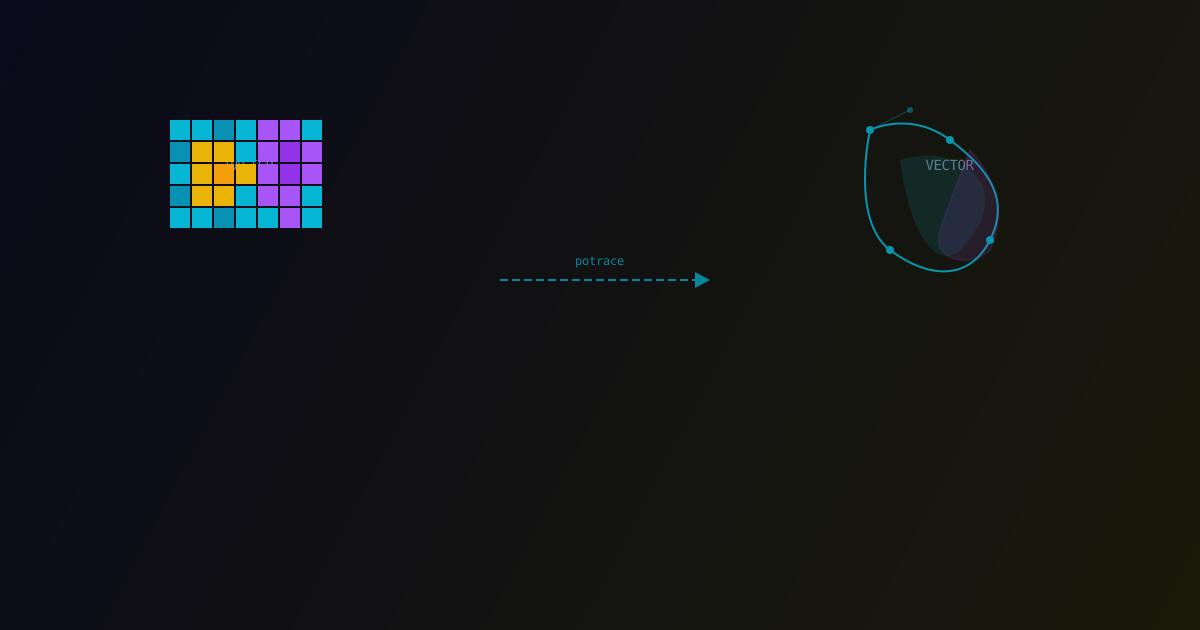
Today we are releasing SVG export in ColorLayer, bringing vector-quality precision to multi-color 3D printing. This feature converts your raster images into clean SVG vector paths before generating the 3D print geometry, resulting in smoother edges and smaller file sizes.
Why Vector?
Raster images are grids of pixels. When you convert a pixel grid directly to 3D geometry, every pixel becomes a tiny rectangular prism. The edges look blocky, especially at lower resolutions. Vector paths, on the other hand, use mathematical curves that scale cleanly to any size.
The difference is visible in the printed result: vector-based models have smooth, clean edges while pixel-based models show stairstepping artifacts.
How Potrace Works
ColorLayer uses Potrace, a well-established bitmap tracing algorithm, to convert raster image layers into vector paths. Here is the process:
1. Color Separation
First, the image is separated into layers by color. Each unique color stack becomes a separate binary mask — pixels that belong to that color are white, everything else is black.
2. Path Tracing
Potrace traces the boundary of each binary mask, converting pixel edges into Bezier curves. The algorithm optimizes the curves to minimize the number of control points while maintaining accuracy.
3. SVG Assembly
All traced paths are assembled into a layered SVG document. Each color layer is a separate group with the appropriate fill color.
4. SVG Optimization
The final SVG passes through SVGO (SVG Optimizer) to remove redundant attributes, simplify paths, and reduce file size.
Memory Optimization
Early testing revealed a significant memory issue. The naive approach of generating SVG paths for every individual color region could produce SVGs with tens of thousands of path elements, causing browsers to run out of memory.
The solution was to use greedy rectangle meshing before path tracing. By merging adjacent same-color pixels into larger rectangles first, the number of paths drops dramatically. A 200x200 image that previously generated 15,000 paths now produces a few hundred.
Stacked Tracing for Faithful Colors
A later improvement added stacked tracing mode. Instead of tracing each color layer independently, ColorLayer traces them as a stack — just like how the filament layers will actually be printed. This ensures that the SVG preview matches the physical print as closely as possible.
Using SVG Export
To export as SVG in ColorLayer:
- Upload and process your image as usual
- The SVG preview appears in the left panel
- The 3D geometry is generated from the optimized vector paths
The result is cleaner geometry with fewer triangles and smoother edges.
SVG as a Standalone Tool
We found the SVG conversion capability so useful that we built it into a standalone tool as well. If you just need to convert a raster image to SVG without the 3D printing aspect, check it out.
SVG export works best with images that have well-defined regions and solid colors. Photographs with smooth gradients will still benefit from the noise filtering, but the vector advantage is most noticeable with logos, text, and graphic designs.
ColorLayer Team
Author